




Creating YouTube Closed Captions With a Text Editor
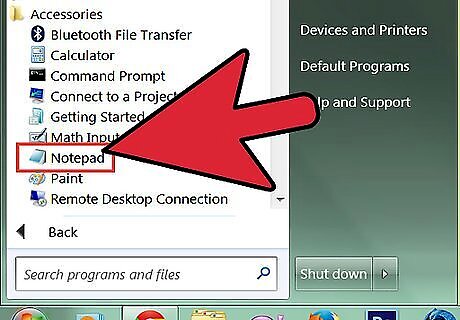
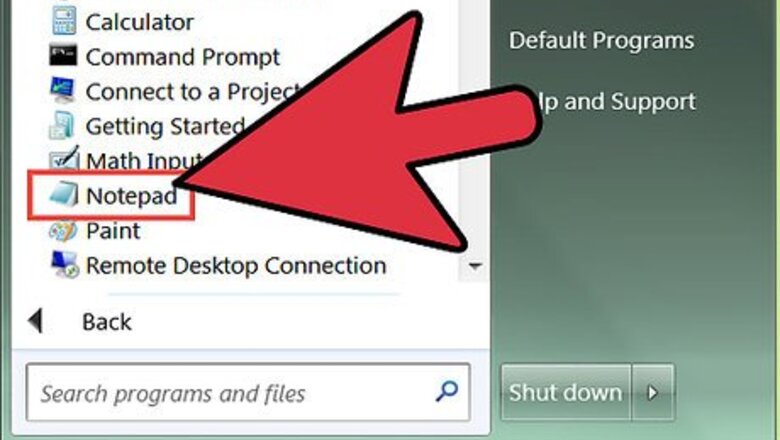
Open a text editor.
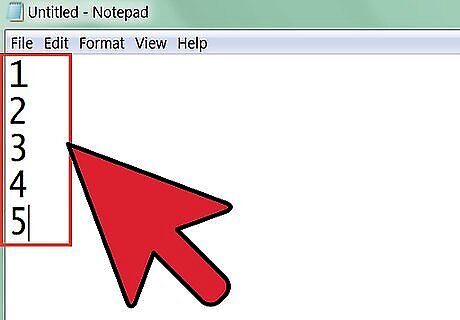
For each caption write its number on a separate line (in order) - begin with 1 .
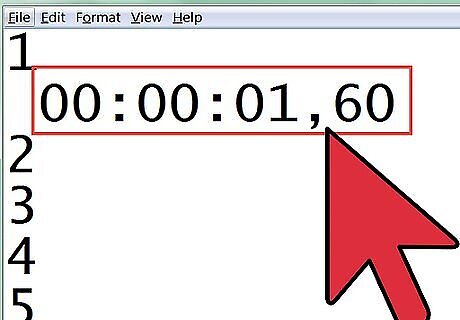
On the next line write the time you want the caption to appear in the video - in HH:MM:SS,MS e.g. 00:00:01,60 is 1 second 60 milliseconds.
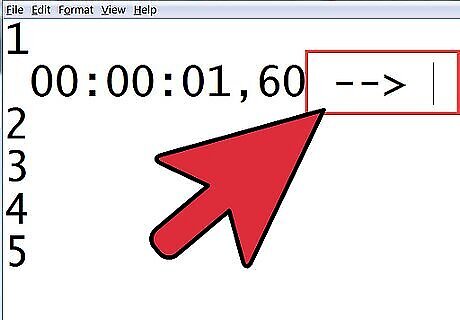
On the same line write --> with spaces either side.
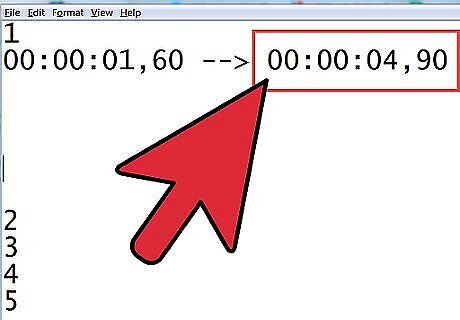
On the same line write the time you want the caption to disappear - in HH:MM:SS,MS e.g. 00:00:04,90
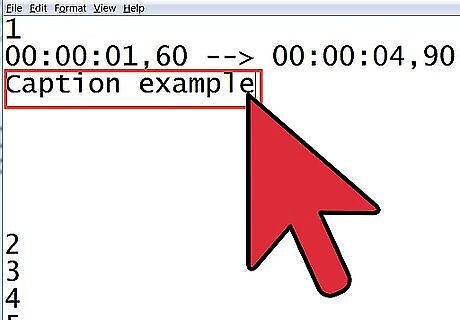
On the next line, write the caption you want to appear.
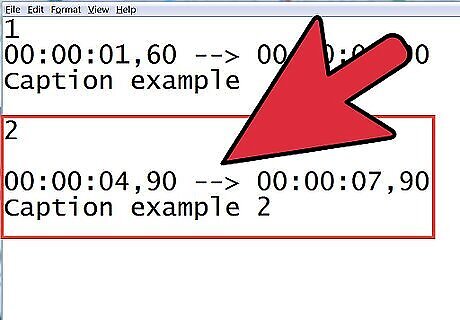
For more captions leave a blank line and begin with the next number in sequence (2, 3, etc...).
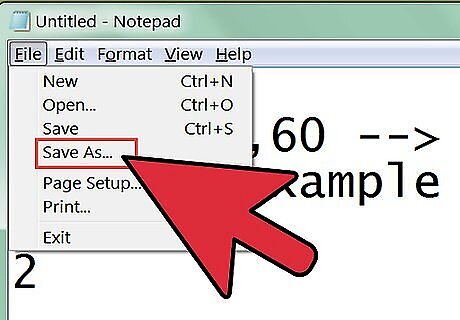
Save the file as whatever you want as long as it is a text file (.txt).
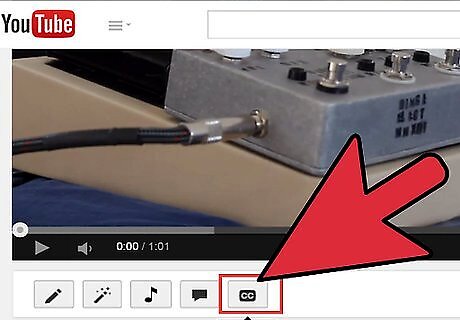
Upload your captions.
Creating YouTube Closed Caption files with uTranscribe.

Create a free account at www.uTranscribe.tv.
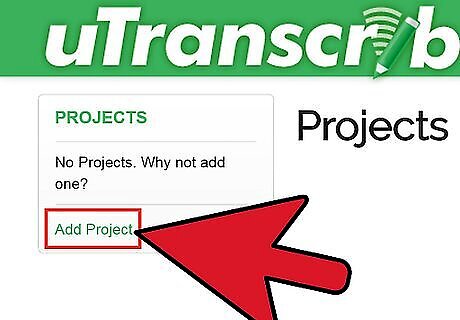
Create a new project.

Copy your YouTube URL.

Start typing and time stamping your video.
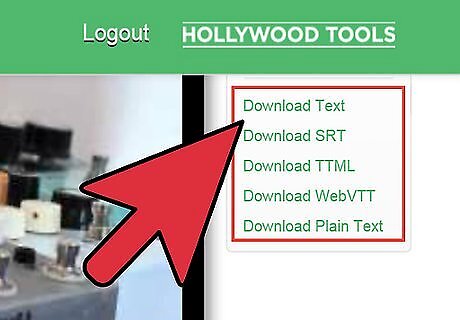
When complete save and output a SRT, WebVTT or TTML closed caption file for YouTube.
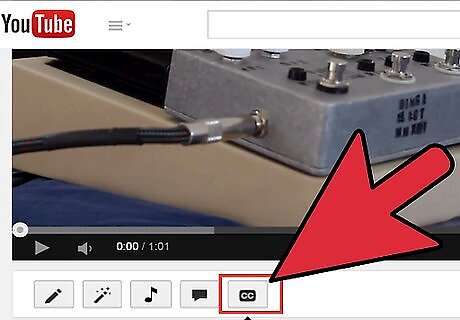
Upload your Closed Caption file to your corresponding YouTube video.






Comments
0 comment