





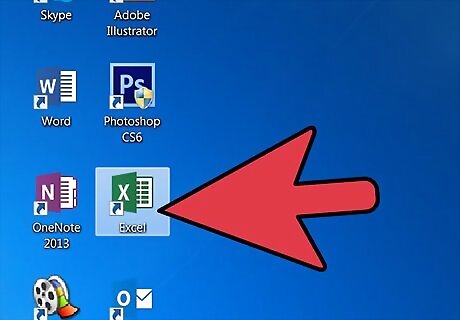
Launch Microsoft Excel.
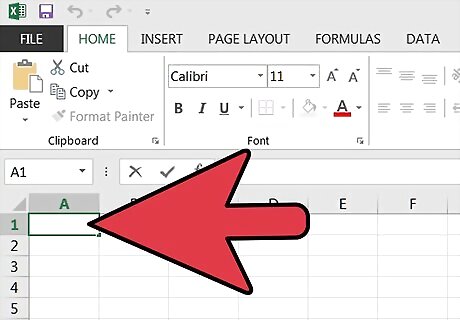
Determine where you will place the text.
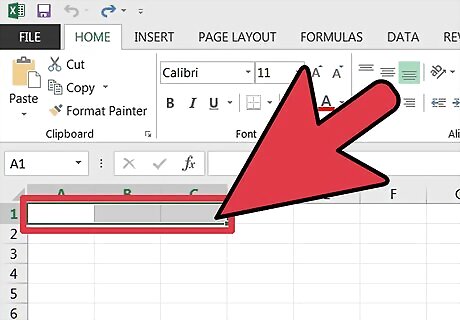
Click and drag to highlight the cells across which the text will be placed.
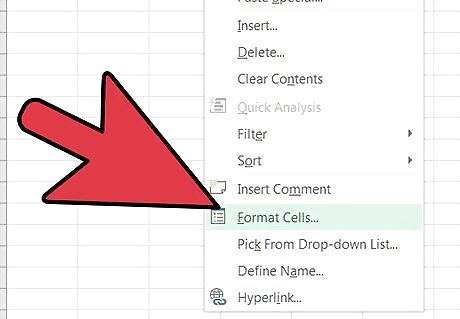
Right-click on the highlighted range and select the "Format Cells" option near the bottom of the pop-up window.
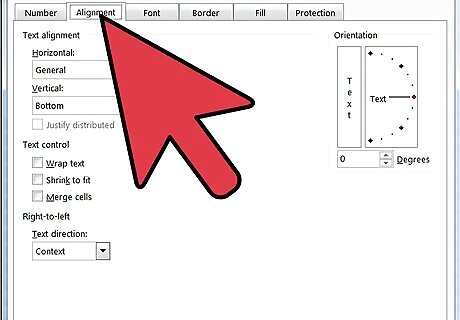
Choose the Alignment tab of the Format Cells window.
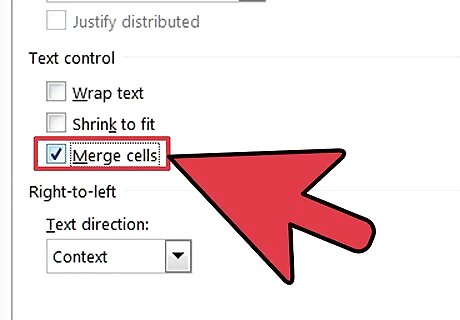
Check the "Merge Cells" option and then click the OK button to close the window.
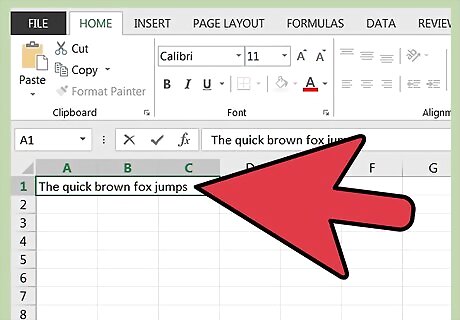
Enter the desired text into this cell. Type out or copy and paste the text into the cell. It may not appear to completely fit, but, even if the complete entry is not visible within the cell, it is still there.
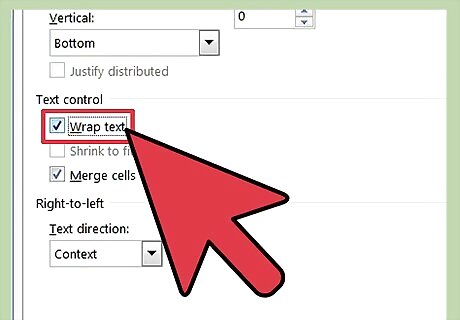
Wrap the text in the cell by right-clicking on the merged cells and again choosing "Format Cells." Check the "Wrap Text" option on the Alignment tab of the "Format Cells" window and then click the OK button to close the window.
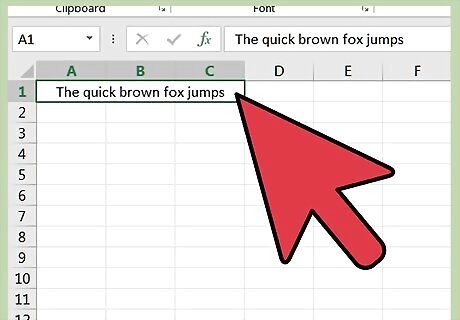
Re-size the cell in order to accommodate the quantity of text, if necessary. The cell is not large enough if the text appears to be cut off. Enlarge the entire row in which the cell is located by clicking in between the row numbers and dragging down until all text is displayed. Add more cells to the original set of merged cells to enlarge the cell. Click the original merged cell and drag either down or to the right to highlight additional cells. Right-click on the highlighted group of cells and choose the "Format Cells" option. Note the grayed out check in the "Merge Cells" box. Uncheck and recheck until the mark is no longer gray.











Comments
0 comment